Most people finally do something about their phone after a week that got away from them. Three hours of scrolling where an hour of actual work was supposed to happen is the usual trigger. Picking the best app blocker for Android comes down to a handful of specific questions about permissions, blocking method, and how many taps it takes to talk yourself out of it. Get those wrong, and the tool becomes one more thing you switch off in a weak moment.
Key takeaways
- How a blocker blocks matters more than who made it: Android’s own timers, accessibility-based blockers and network filters all behave differently.
- A tool that can stop an app is usually asking for a permission that also lets it observe a great deal, so read the disclosure before you tap agree.
- The evidence is modest and specific: a three-week trial cut time on the worst app by about 29 minutes a day.
- The usual failure mode is disengagement, not laziness. In a 2026 study of 252 people who had switched their nudges off, 46 percent turned them back on when prompted.
- Android’s built-in app timers reset at midnight, so a blocked app is available again by breakfast.
What a blocker actually changes
Blocking does not install discipline. It changes the cost of a decision you were going to make anyway, and every app blocker for Android works on that single lever. A 2021 randomised trial compared a 20-day training app with a plain digital detox routine, in which people planned daily time-outs of at least an hour. Both groups reported less problematic phone use and logged less time on the phone.
One result from that trial is easy to skim past: how often people picked up the phone, measured objectively rather than by asking, barely moved in either group. Less time on the phone came from shorter sessions rather than fewer of them. If your problem is compulsive checking rather than total hours, a tool that interrupts a session will do more for you than one that emails a weekly report, which is the same reason small digital boundaries outlast dramatic deletions.
The closest thing to a clean test of reminder-style blocking arrived in 2026. Researchers randomised 70 iPhone users to a three-week trial of an app that threw up a full-screen prompt whenever a session on a self-chosen problem app passed a limit the participant had set. The prompt offered two buttons: quit, or continue. Daily time on that app fell by roughly 29 minutes, and participants rated their smartphone use as less problematic.
Two caveats keep that finding honest. The sample was small, the trial was short, and it ran on iPhones rather than Android. The same study found no significant improvement in problematic social media use or in self-efficacy, so the app changed behaviour more convincingly than it changed how people felt about the behaviour.
How Android blockers do the blocking
Most tools on the Play Store use one of three mechanisms, and the choice shapes everything about daily use.
Android’s own Digital Wellbeing is the first. App timers close an app and dim its icon when your time runs out, and Focus mode pauses chosen apps entirely, including their notifications, on a schedule or on demand. A “Take a break” button unpauses apps for a set period without dismantling the whole setup.
The second is the accessibility service, which lets an app see which screen is open and act on it. That is how a blocker can shut a door the moment a specific app launches, and it is also why Google Play treats these apps carefully. Since 3 November 2021, apps targeting Android 12 that use the accessibility API have to complete a permission declaration form and be approved by Play.
The third approach filters at the network level instead of the screen, usually by running a local VPN service, or by drawing an overlay on top of a blocked app. Network filtering catches browsers and in-app feeds that a per-app timer never sees, which is why some app blockers for Android ask for a VPN slot on your phone.
What to look for in an app blocker for Android
Start with the disclosure. Play requires accessibility-based tools to explain, inside the app and before you grant anything, exactly what they will see and why, and that explanation has to stand apart from the privacy policy.
Then look at the block itself. A hard wall frustrates, while a prompt asking “quit or continue” produced the 29-minute reduction in the 2026 trial. Check whether you can schedule the block and whether the schedule survives a restart, because a tool that only runs when you remember to open it solves nothing.
The escape route matters more than the settings screen. Count how many taps stand between you and the app you are trying to avoid, because that number is the whole product.
Finally, check what the app asks of you. Anything that needs an account and uploads your app list is building a profile of your habits, and some work and school accounts do not support app timers at all. Our productivity archive follows the same rule: try the free option first, then pay only for the part that is missing.
The permission conversation you should not skip
Google Play classes permissions as dangerous, special or signature, and treats everything an app reads through them as personal and sensitive user data. That raises the bar for whichever app blocker for Android you end up trusting.
The rules say an app has to respect your decision if you decline, must not push or trick you into consenting, and must offer a reasonable alternative path. For special permissions such as drawing over other apps, it has to send you to the system settings screen for approval rather than flipping the switch itself.
In practice this hands you a fair test. A blocker that asks for one permission, explains it in a sentence you understand, and works without an account is doing the job honestly. A blocker that wants accessibility access plus notification access plus an overlay, and never says why, is asking for much more than the task requires.
What Android already does for free
Set up the built-in tools first. Two app timers and one Focus mode schedule cover most of what people hire an app blocker for Android to do, and nothing new gets access to your screen. The setup steps are in how to reduce screen time on Android.
The trade-off is softness. Timers reset at midnight, so the block lifts whether or not you earned it, and deleting a timer takes about five seconds. For blocking scrolling during work hours, the built-in route is enough. If you need the block to hold when you are bored, tired and negotiating with yourself, that softness is exactly why people move to something with teeth.
How Uhh can help
Uhh is our own Android app for this exact problem. Its store listing describes it as a tool that blocks distracting apps, reduces screen time and builds better focus habits, and that is the entire job it was built for. You will find it on Google Play, alongside the rest of our apps on the products page.
FAQ
Do app blockers actually work?
They work on behaviour more reliably than on feelings. The 2026 trial cut daily time on the most problematic app by about 29 minutes but found no significant change in how problematic people judged their social media use. The 2021 trial showed both a training app and a plain time-out routine reducing phone use.
Is Android’s own app timer enough?
For a mild habit, often yes. Timers close the app and dim the icon, Focus mode pauses apps and their notifications, and the whole arrangement resets at midnight. The catch is that anyone motivated enough to install a blocker is usually motivated enough to delete a timer.
Which permission does an app blocker for Android need?
It depends on how it blocks. Accessibility-based blockers need the accessibility service and, on Android 12 and later, approval through Google Play’s declaration form. Network-level filters need a VPN slot. Screen timers need neither, because Android provides them.
Can you bypass a blocker?
Yes, and every blocker is designed around that fact, so the honest question is what the bypass costs in effort. Tools that make the workaround slow tend to survive longer, because the impulse usually expires before the extra taps are done. A phone-free evening, like a 15-minute evening routine, sometimes holds better than a block you can argue with.
This article is educational and is not medical or professional advice. If your phone use is affecting your sleep, work or mental health, talk to a qualified professional.
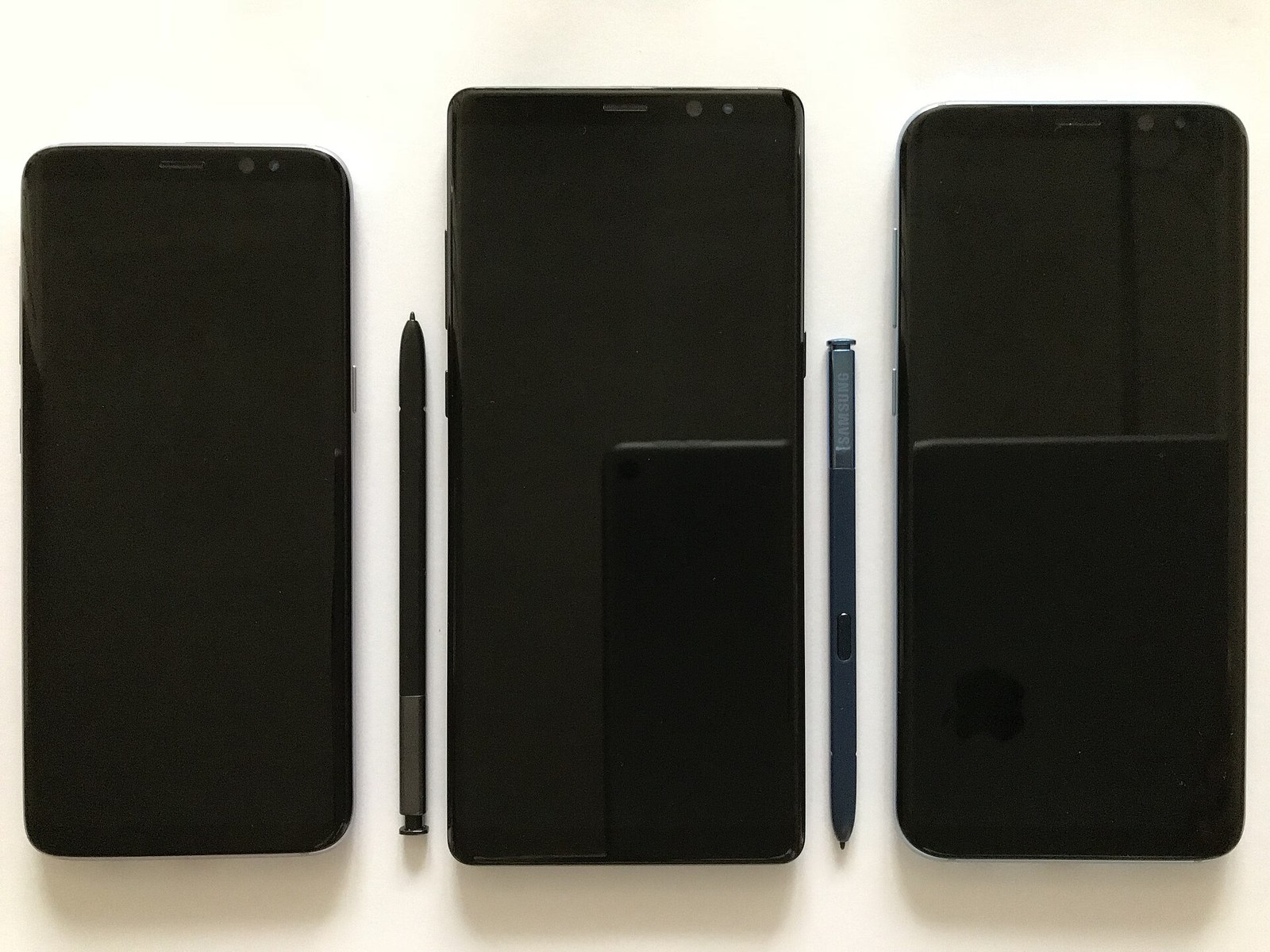
Featured image: “Smartphone (screen off)” by 彭嘉傑 via Wikimedia Commons, licensed CC BY-SA 4.0. Resized from the original.
Sources
- Google. Manage how you spend time on your Android phone with Digital Wellbeing. https://support.google.com/android/answer/9346420
- Google Play. Use of the AccessibilityService API. https://support.google.com/googleplay/android-developer/answer/10964491
- Google Play. Permissions and APIs that Access Sensitive Information. https://support.google.com/googleplay/android-developer/answer/16558241
- Keller J, Roitzheim C, Radtke T, et al. A Mobile Intervention for Self-Efficacious and Goal-Directed Smartphone Use in the General Population: Randomized Controlled Trial. JMIR mHealth uHealth. 2021;9(11):e26397. https://pubmed.ncbi.nlm.nih.gov/34817388/
- Mertens L, Brockmeier LC, Roitzheim C, et al. Promoting Self-Regulated Social Media Use on Smartphones With a Mobile Intervention App (Wellspent): Randomized Controlled Trial. JMIR mHealth uHealth. 2026;14:e56824. https://pubmed.ncbi.nlm.nih.gov/41950504/
- Peña-Albert AK, Ingram S, Khazaal Y, et al. Restoring Engagement in Digital Self-Control Tools Using Nudge Reconfiguration Prompts: Quasi-Experimental Study. JMIR Form Res. 2026;10:e85349. https://pubmed.ncbi.nlm.nih.gov/42048520/